Live polls for presentations
Free to start. Ask the room and everyone answers on their phone, with results moving live on your screen.
Drag to reorder, or press Space to pick up, the arrow keys to move and Space to drop.
Free, no sign-up for anyone.
Join in seconds with a QR code, no app or account
A live poll turns a presentation into a conversation. Type a question, show the QR code, and your audience answers from their phones while the results move on your screen. Nothing to install, no account to make, and nobody is asked for a name.
Type your questions
Seven question types, or start from a ready-made poll.
Show the code
Your audience scans the QR code or types 6 digits on the join page. Or download a join slide and drop it into your deck.
Watch answers arrive
Results move as votes come in, and you choose when to show them.
Live results, word clouds and rankings that look great on a projector
Answers land on the big screen as they arrive. Columns grow, word clouds fill and rankings re-order as the room votes.
A live demo with sample answers.
- The join code and QR stay on screen the whole time, with a live count of who has answered.
- Text sizes itself to the screen.
- Five emoji reactions float up the big screen.
A free audience response system: you present, they answer
Your audience answers on their phones. You keep the big screen, the keyboard or a clicker, and a private remote in your pocket.
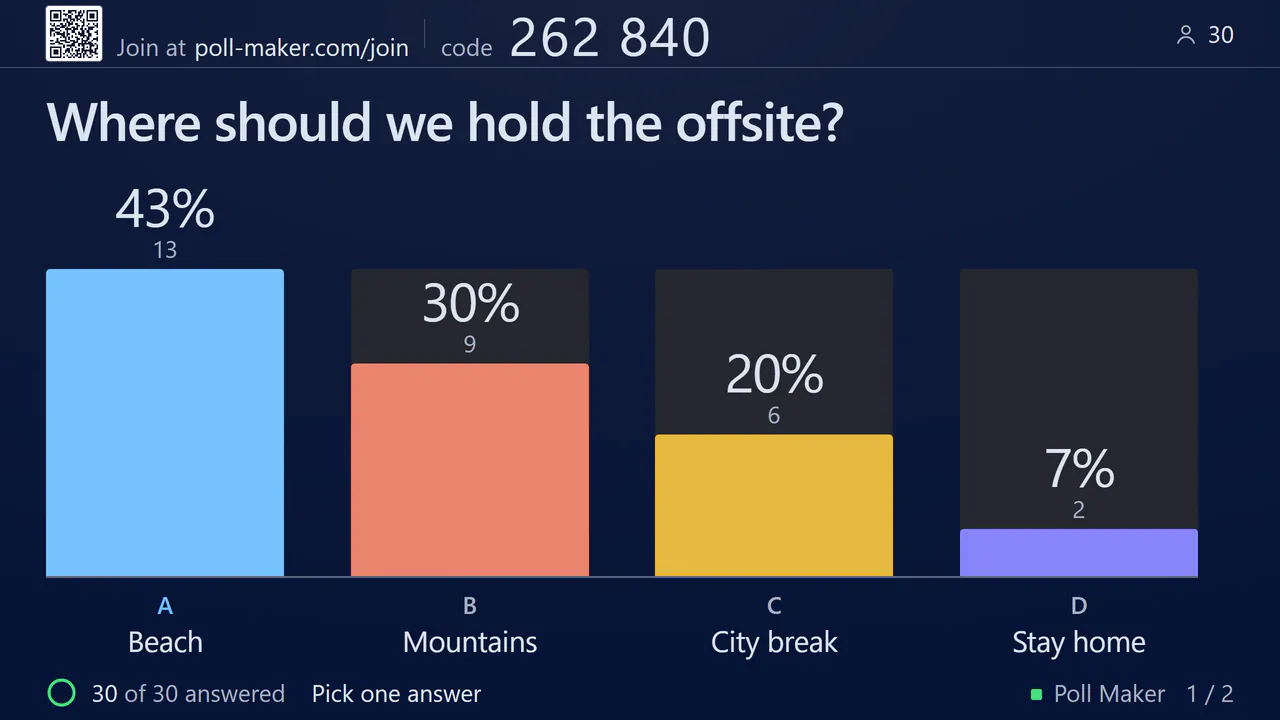
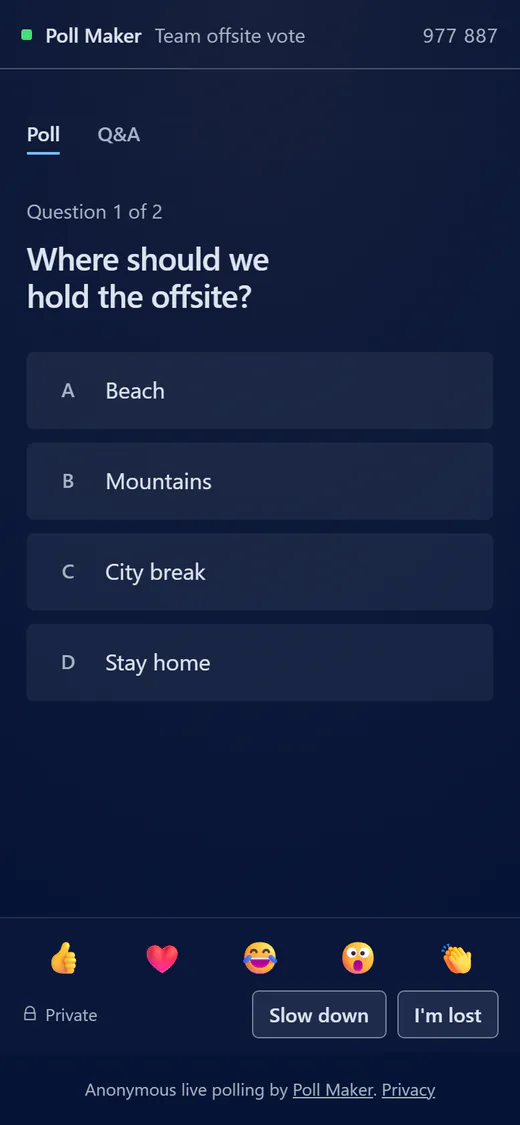
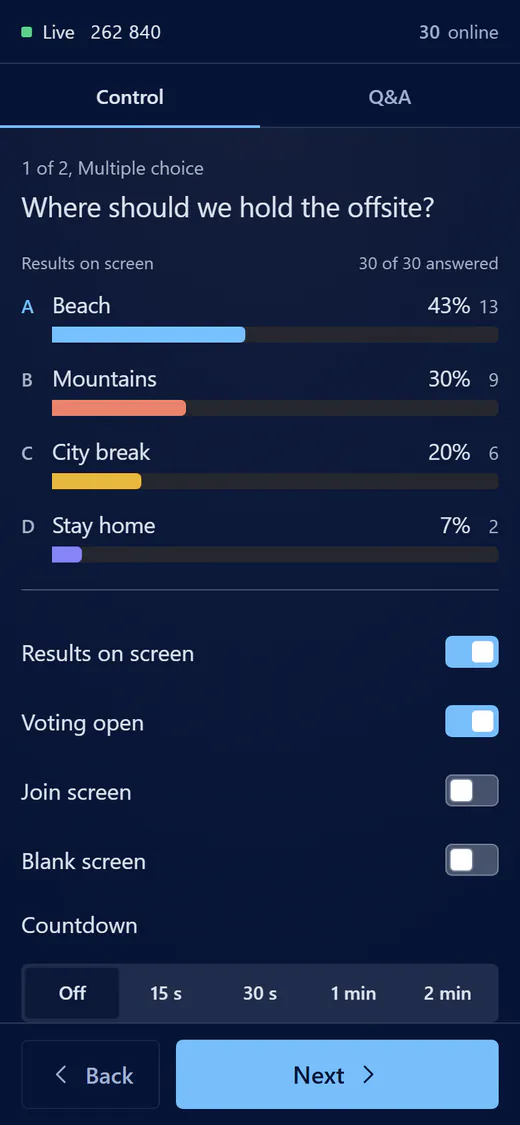
- Arrow keys, Space or a presentation clicker move between questions.
- With two screens, the room sees a clean stage while you keep a console with your next question, answers and Q&A.
- Private Slow down and I'm lost buttons show only you how the room is doing.
Live Q&A with moderation you control from your phone
Let the room ask questions and vote the best ones up. Approve them first, hide any you do not want shown, and spotlight the one you want to answer.
- Common swear words are masked and held back from the screen until you choose to show them.
- Approve written answers and audience questions before they reach the screen.
16 themes, plus High contrast and Large text for big rooms
Pick a look that suits the room. Every theme changes the big screen and every phone at once.
- A High contrast theme for low vision and weak projectors.
- Large text makes the big screen and every phone one size bigger. Press Z.
- Add your brand colour, your logo and a background picture.
One poll, two ways to run it: share a link or go live
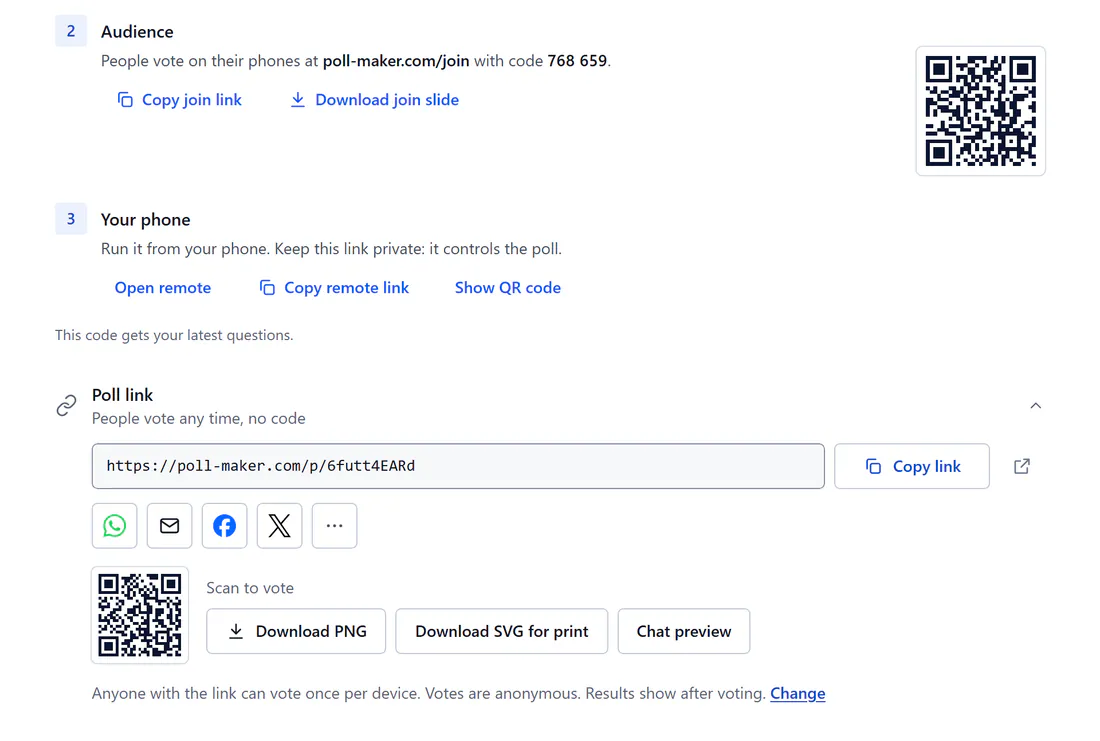
The same poll has a link anyone can open any time and a 6-digit code for the room. Both add to the same results, so you can start either way.
- Share the link with a QR code, WhatsApp, email and more.
- Choose when results show: after voting, always, when voting closes, when you reveal them, or never.
- Only need a link and no live room? You can make a poll on the homepage.
Take the results with you: recap, report and CSV export
Phones show every result when you end the poll. You get a report for each poll and a CSV of every result.
- Print the report or save it as a PDF from your browser.
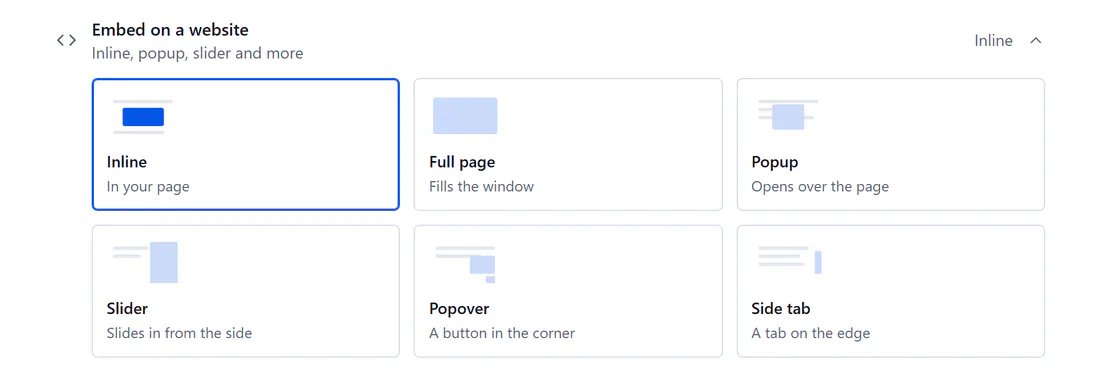
- In Poll link mode, embed a poll on your website as inline, full page, popup, slider, popover or side tab.
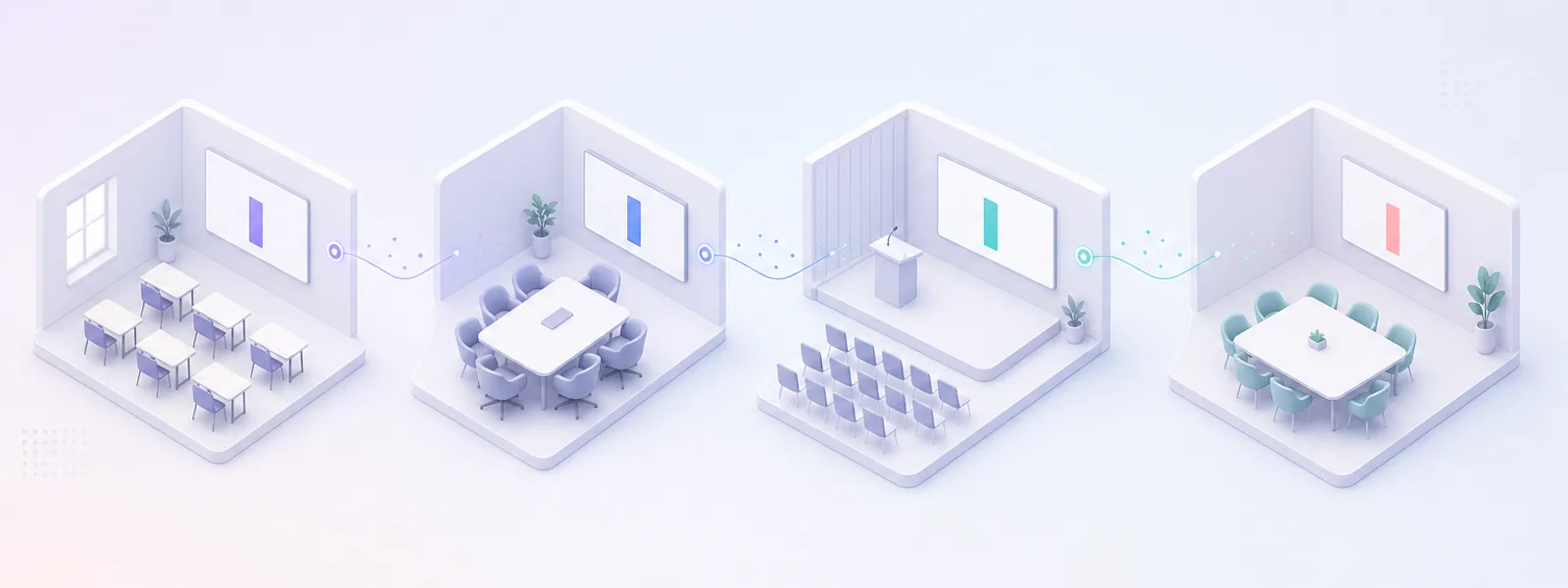
Live polling for classrooms, meetings, events and training
Pick the room you are in and start from a poll built for it.
Teachers
Warm-ups, retrieval practice and peer instruction. Mark a right answer and reveal it to the class together.
Meeting hosts
Icebreakers, check-ins and retros, each with a suggested time.
Event hosts
Word clouds, guess-the-winner rounds and audience Q&A for the whole room.
Trainers
Open with a word cloud, then check understanding with a rating.
Ready-made live polls to start from
32 ready-made polls in 8 groups. Open one to see it run, then use it as it is or make it yours.
How live polling here compares with other tools
| Feature | Poll Maker | AhaSlides | Kahoot! | Mentimeter | Poll Everywhere | Slido |
|---|---|---|---|---|---|---|
| Presenter needs an account | No | Yes | Yes, except with guest hosting on some plans | Yes | Yes | Yes |
| Audience needs an account or app | No | No | No | No | No | No |
| Audience joins with | QR code, or 6 digits at poll-maker.com/ | QR code, or ahaslides.com/ and a short code | QR code, or kahoot.it and a game PIN | QR code, or menti.com and an 8-digit code | QR code, or pe.app/ and the presenter's code | QR code, or slido.com and a code |
| Audience on the free plan | No cap | 50 per presentation | 15 per session | 50 per month | 40 at once | 100 per slido |
| Time limits on the free plan | None | None stated | 15 minutes per session | None stated | None stated | 7 days per slido |
| Questions per presentation on the free plan | 40 per poll | 5 quiz and 3 poll questions | Not stated | 200 slides | Unlimited | 3 polls and 1 quiz |
| Private phone remote for the presenter | Yes, with no sign-in | Yes, with no presenter login | No | Yes, on Pro and Enterprise plans | No, in version 2.0 | No. Log in on a phone browser to run polls |
| Approve audience questions before the room sees them | Yes, free | Yes, on Pro | Q&A listed from Pro Standard | Yes, on Pro | On Q&A polls; plan not named | Yes, on Professional |
| Your logo and brand colours | Yes, free | Yes, on paid plans | Logo and colours listed from Pro Start | Yes, on Pro | Yes, on higher paid plans | Yes, on Professional |
| Download your results | CSV, free | Excel, PDF, JPG on paid plans | XLSX; plan not stated | Excel, PDF, images on paid plans | CSV, Excel; its pages disagree on plans | Excel, PDF, Sheets on paid plans |
| Where a poll becomes an anytime link | Same poll, in the Share tab | Settings, then Who takes the lead | A separate Assign button | Settings, then Survey mode | Share, then Response link | Poll menu, then Direct link |
Checked on 29 and 30 September 2026 from each tool's own public help and pricing pages. Plans and features change, so check the tool's page before you choose. Product names belong to their owners.
Live polling FAQ
Is live polling free?
Yes. Building, presenting and sharing a live poll is free, and neither you nor your audience needs an account. Free polls show a small Made with Poll Maker link.
Do I or my audience need an account or an app?
No. You build and present without signing in. Your audience scans the QR code, or types the 6-digit code at poll-maker.com/
Can I use it with PowerPoint, Google Slides or Zoom?
There is no add-in, so there is nothing to install or update. Download a join slide, a picture with the code and QR, and drop it into your deck. Then switch to Poll Maker for the poll. On a video call, share the Poll Maker tab like any other screen.
Which question types can I use?
Seven: multiple choice, image choice, word cloud, open text, rating scale, ranking and audience Q&A. You can also mark a right answer and reveal it to the room, or ask everyone to guess the winner.
How do I control it while I present?
Arrow keys, Space or a presentation clicker move between questions. H shows or hides results, C closes voting, T starts a 30 second countdown and Z makes the text larger. Press R on the big screen for the link to your private phone remote.
What if someone sends something rude?
Common swear words are masked and held back from the screen until you choose to show them. You can also approve written answers and questions first, and hide any written answer or question from your phone.
Are votes anonymous, and where do the results go?
Votes are anonymous by default, and you only see names if you turn that setting on. Every poll gets a report, and you can download the results as a CSV.
Can I use my brand colours and logo?
Yes. Pick one of 16 themes, then add your brand colour, a font and your logo in the Theme tab. Colours that are hard to read are nudged so they stay readable, and phones pick up your look too.
Your next presentation, with the whole room in it.
Free to start, with no sign-up.