
How to Make a Poll
One question, a few answers, and a link you can paste anywhere. Start typing and your poll is live in under a minute.
- No account needed
- One vote per person
- Anonymous by default
- Works on any phone
Press Create Poll and you get a link. Everything below is how to make that poll a good one.
Polling 1 million people every day since 2003

Make a poll in five steps
The editor above is the real thing, not a demo. These are the five steps it walks you through, and the decisions worth thinking about at each one.
-
Write one question
A poll settles one thing. Put the actual decision in the box: not "team offsite" but "Which day works best for the team offsite?" People answer questions, they skip topics.
If you find yourself wanting to ask a second question, you want a form or a survey instead.
-
Add the answer options
Each choice goes on its own row, and a fresh row appears as you fill the last one, so there is no ceiling to worry about. Click the image icon on any row to add a picture from your own files, Unsplash or GIPHY.
Restraint beats capacity here. Past about six options people stop reading and pick from the top of the list, so a long list quietly biases itself.
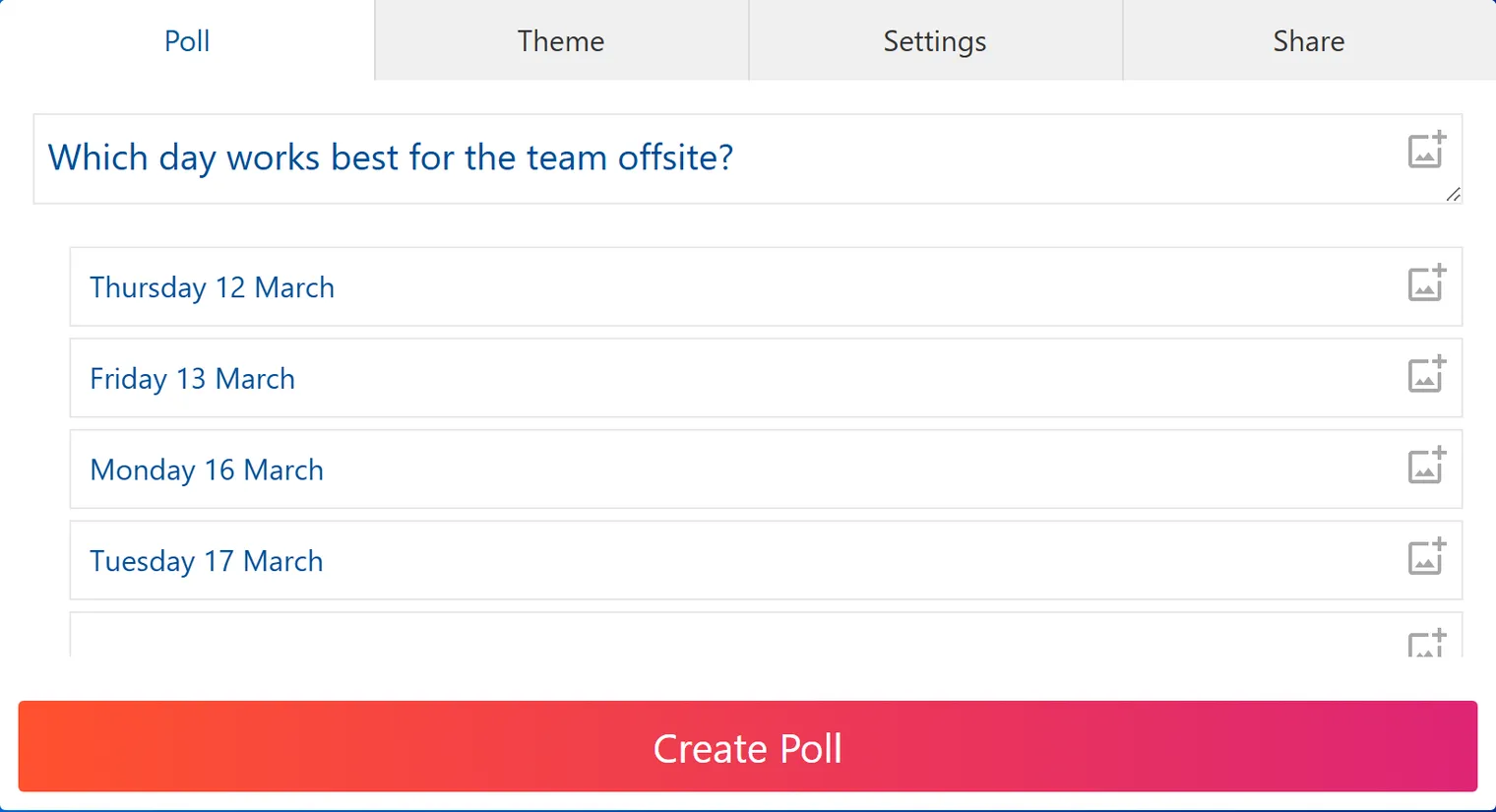
A finished poll before you press Create. The tabs above the question hold the theme, settings and share link. -
Set the rules under Settings
Most polls need nothing here. Three settings are worth ten seconds of your time: whether each person gets one vote, whether voters see the running tally, and whether they can pick more than one answer. The next section explains what each one changes.
-
Press Create Poll and copy the link
The Share tab appears with your poll link, a copy button, and buttons for the usual social networks. That link is the whole product: it opens in any browser on any phone, so it works in places a built-in poll cannot reach.
Website embedding, email sending, unique voting codes and posting into Slack are Pro features. The link itself, and the votes it collects, are not.
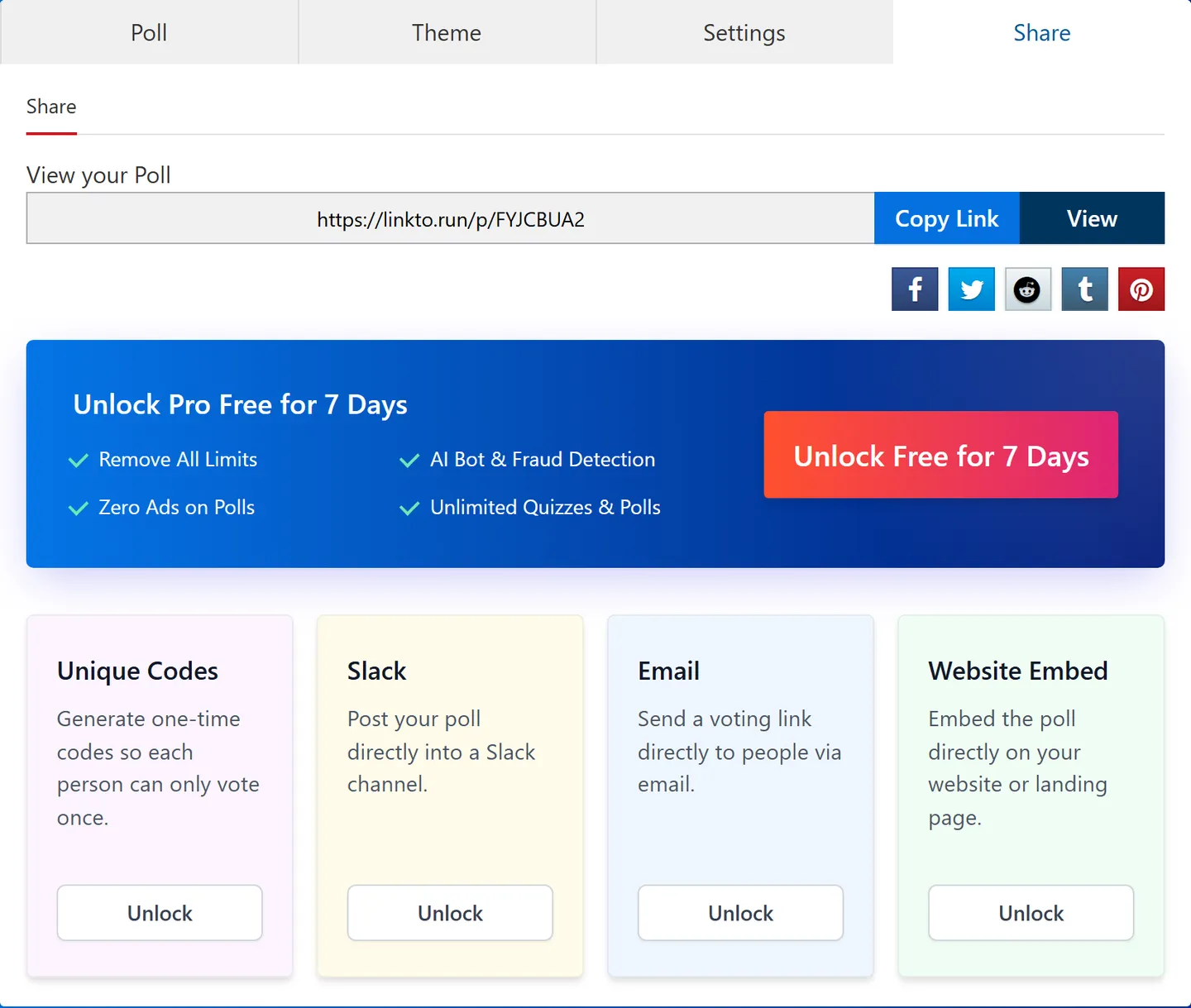
The Share tab after you create a poll. Website embed, email sending, unique voting codes and Slack posting are Pro features. -
Watch the results come in
Every vote updates the results page immediately. You get the share for each option, a timeline of when votes arrived, and a comment thread underneath unless you switch it off.
Nothing to refresh and nobody to chase. If the poll is public, you can send the same link again and people will land on the live tally.
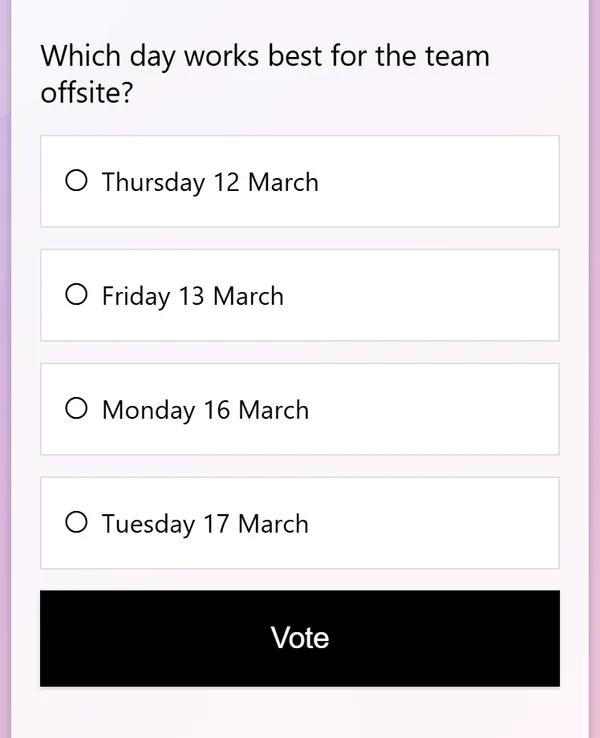
What voters see on a phone. 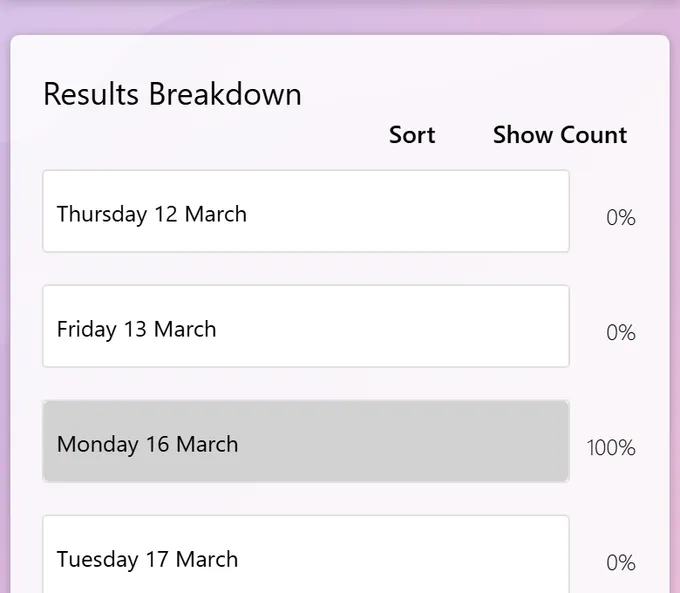
The results breakdown, which updates as votes arrive. Sort the rows or switch to counts instead of percentages.
Where are you sending it?
Most people asking how to make a poll already know where it is going: a WhatsApp group, a text thread, a Facebook group, a Teams channel. Several of those apps have a poll built in, and sometimes it is genuinely the right answer. Here is how each one works, and the point at which it stops being enough.
| Poll type | Options | One vote each | Anonymous | Who can vote |
|---|---|---|---|---|
| A poll link | No practical limit | Yes | Yes | Anyone you send the link to |
| 12 | If set before sending | If set before sending | People in that chat | |
| iMessage | 12 | No | No | iMessage users on iOS 26 or later |
| Facebook group | No stated limit | Yes, in settings | No | Group members |
| Instagram story | 4 | Yes | No | Story viewers, for 24 hours |
| Microsoft Teams | 12 in meetings | Yes | Yes, by default | People in your organisation |
| Slack | No built-in poll | No | No | Channel members |
Checked against the current help documentation from WhatsApp, Apple, Facebook, Microsoft and Slack in September 2026. Vendors change these, so treat the row for your app as a starting point and check the setting in front of you.
- Open the group chat and tap the plus icon next to the message box, then tap Poll.
- Set the options before you send: Allow multiple answers is on by default, so turn it off to give everyone one vote. Hide voter names makes votes secret. Set an end time closes voting for you.
- Type the question, up to 255 characters, then enter up to 12 options of 100 characters each. Hold the handle beside an option to reorder it.
- Send it. You can edit the question for 15 minutes; after that, only deleting and reposting will change it.
Where it runs outSettings are locked once you send. If you forget to turn off multiple answers, the only fix is to delete the poll and start again. Only people in that one chat can vote, and there is no export.
Use a link whenPaste a poll link into the chat instead when you need more than 12 options, want to poll people who are not in the group, want the results as a file, or want to change a setting after people start voting.
Text message and iMessage
- On iOS 26 or later you can poll an iMessage group: open the conversation, tap the plus icon, tap Polls, tap each row to add up to 12 choices, then send.
- Anyone in the poll can tap Add Choice to add their own option, and voting is always multi-select.
- Touch and hold the poll and tap Poll Details to see who voted and who has not.
- For any other kind of text, make a poll here, copy the link, and paste it into the message.
Where it runs outThe built-in poll needs iMessage and iOS 26 on every phone in the chat. One Android friend, or one person who has not updated, and they do not see the poll at all, just a note that one was sent. It is never anonymous and you cannot limit anyone to one vote.
Use a link whenA link is the only poll that works in a green-bubble group, an RCS thread, or a plain SMS blast. It opens in the browser on any phone, and you keep one vote per person and anonymity.
- Polls live in groups, not on personal timelines or Page posts. Go to the group and click Write something.
- Click Options at the bottom right of the composer and choose Poll.
- Write the prompt and the options, then open Settings to pick Allow people to choose multiple answers and Allow anyone to add options.
- Click Post. Anyone who adds an option automatically votes for it.
Where it runs outOnce a single person votes, including you, the prompt and options are frozen. Admins can switch polls off for a group entirely, and votes are attributed to names, so nothing on Facebook is anonymous.
Use a link whenPost a poll link when you want an anonymous vote, when you want to reach people outside the group, or when you want to fix a typo after voting has started.
- Create a story, tap the sticker icon, and choose the Poll sticker.
- Type the question and up to four answer options, then position the sticker and share the story.
- To see the count and the names, open your own story and swipe up to the viewer list.
Where it runs outA story poll disappears after 24 hours, caps you at four options, and only reaches people who happen to open the story. You can see exactly who voted for what, which also means your audience knows you can.
Use a link whenPut a poll link in your bio or a story link sticker when the vote needs to run longer than a day, needs more than four options, or needs to be genuinely anonymous.
Microsoft Teams
- In a chat or channel, select Actions and apps beside the compose box and pick Polls. If it is not listed, add it from Apps.
- Enter the question and at least two options, then use Options to add more.
- Turn on Multiple selections to let people pick more than one. Leave Record names of respondents off to keep it anonymous, or turn it on so only you see who voted.
- For a meeting, add a Polls tab to the meeting chat and create a Multiple Choice Poll with up to 12 options, then launch it live.
Where it runs outTeams polls are built on Microsoft Forms, so everyone voting needs to be inside your organisation with a Microsoft 365 account. Guests and customers are out.
Use a link whenUse a link when the people you need to hear from are outside the tenant: customers, contractors, parents, members, or a mixed committee.
Slack and Discord
- Slack has no built-in poll. The two-second version is to post the question and add emoji reactions people click to vote.
- For anything countable, teams install an app such as Polly or Simple Poll from the Slack marketplace.
- Discord servers usually use a bot for the same reason.
Where it runs outEmoji voting is public, easy to game, and impossible to export. Poll apps mostly need a workspace admin to approve the install, which is often where the idea dies.
Use a link whenA poll link needs nobody to install anything. Paste it in the channel and Slack unfurls it. Everyone votes in the browser and you get one clean result set.
Your website or blog
- Create the poll, open the Share tab, and take the embed code.
- Paste it into the page or post where you want the poll to appear.
- Results from the embed and from anyone using the plain link are pooled into one set of numbers.
Where it runs outEmbedding is a Pro feature, and very occasionally a site theme fights the embed code, so test the page before you publish it.
Use a link whenIf you would rather not touch the template, link to the poll from the post. It is the same poll and the same result set.
- Email clients strip almost all interactivity, so a poll that lives inside the message body will not work for most of your list.
- Create the poll here and put the link behind a button or a plain sentence in the email.
- If you need to know exactly who replied, turn on unique voting codes so each person gets a single-use link.
Where it runs outAny poll that claims to run inside the email itself is really a set of tracked links, which breaks in most clients and cannot stop repeat votes.
Use a link whenOne link, one vote each, results in real time, and nothing for the recipient to install or sign into.
There is a pattern in that table. Built-in polls are excellent at speed and terrible at everything that happens afterwards: reaching one person outside the group, changing your mind about a setting, keeping a vote genuinely secret, or getting the numbers out into a spreadsheet.
If your poll settles something small inside one chat, use the built-in one. If anything about it matters, send a link.
The settings that change your results
Nine settings sit under the Settings tab and another nine under Advanced. You can ignore almost all of them. These are the ones that change the numbers you get back rather than how the poll looks.
One vote per person
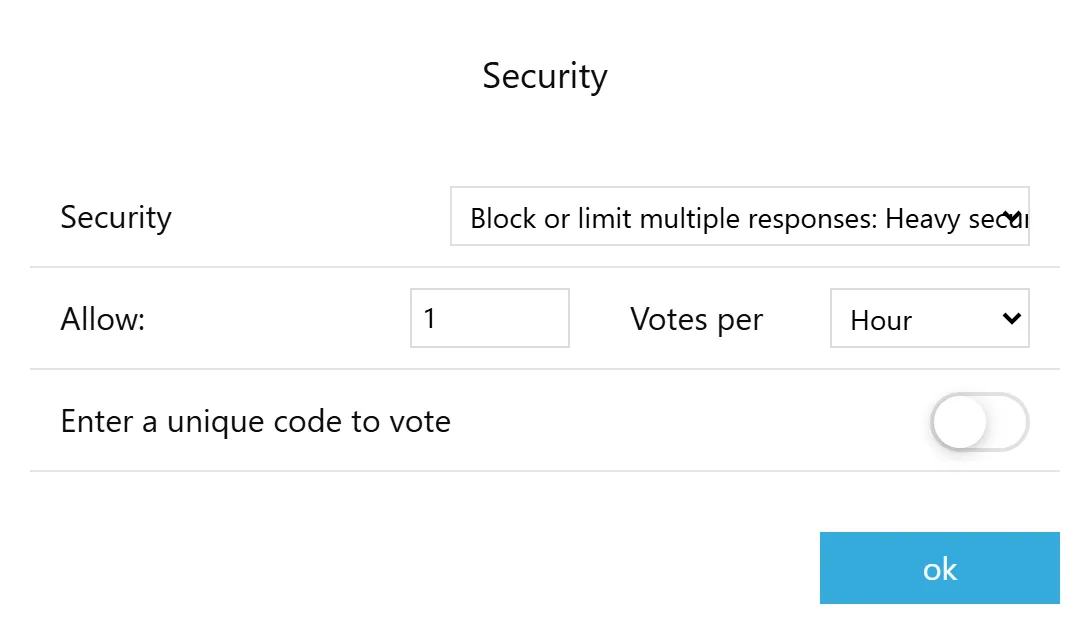
Open Settings, then Configure beside Security. The dropdown runs from letting everyone vote as often as they like through to heavy protection, and heavy is the default. Under it, Allow 1 vote per All time gives you a strict single vote each.
Every vote is scored for authenticity against a digital signature. Votes past the threshold are quietly not counted, and the person who cast them still sees their vote land. That is deliberate: an attacker who gets no feedback has nothing to iterate against.
For a vote where the outcome is contested, turn on Enter a unique code to vote. Each person gets a one-time code, which closes the ballot to everyone else. Unique codes are a Pro feature.
What voters can see, and when
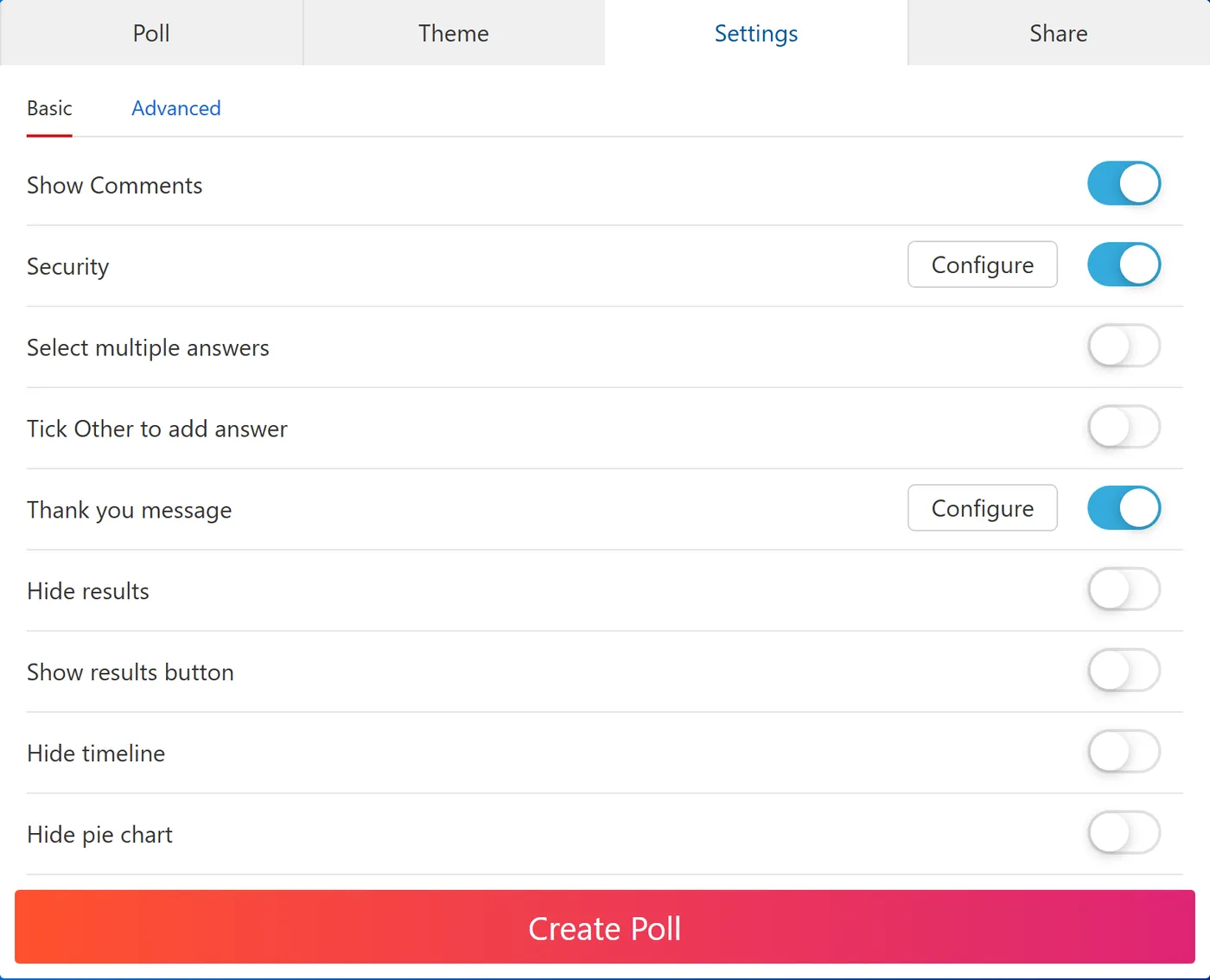
Turn on Hide results and people see a thank you instead of the numbers. Add Show results button if you would rather let them choose to look.
Do this on any poll that runs longer than a day. Visible results pull later voters towards whatever is already winning, so an open tally quietly counts your early voters twice.
Select multiple answers turns the poll from "choose one" into "choose any that apply", which is the right shape for a question like which dates work for you. Tick Other to add answer lets voters write in an option you did not think of, which is the fastest way to find out your list was wrong.
Closing the poll on a schedule
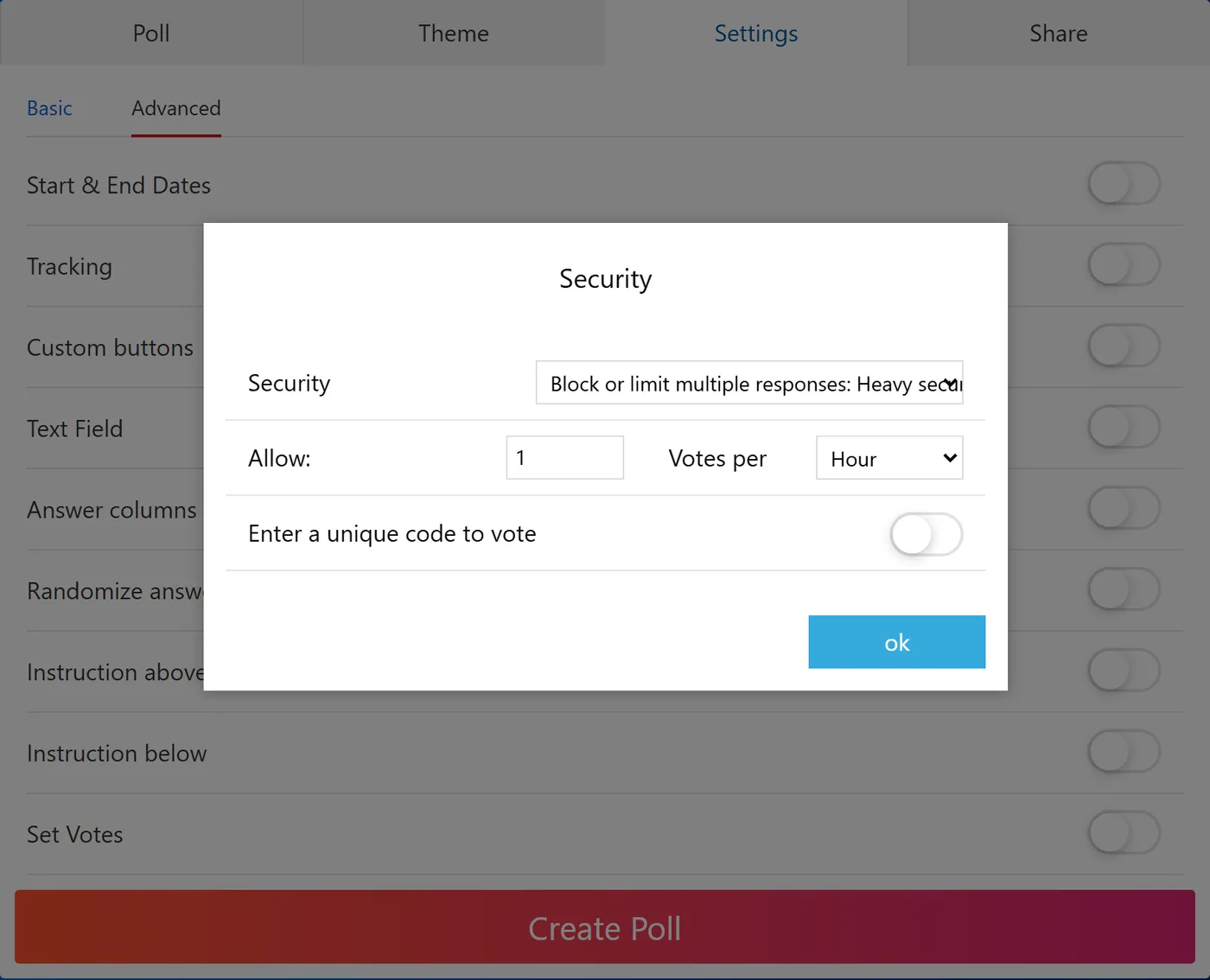
Under Advanced, Start & End Dates opens and closes voting for you. Set the close date when you create the poll and you never have to remember it again.
Randomize answers is the other one worth knowing. Options at the top of a list get chosen more often simply for being there, and randomising the order spreads that bias evenly instead of parking all of it on your first option.
Text Field adds a free-text box under the choices, which is useful when you want a reason as well as a vote.
Writing a question people actually answer
A poll gets one screen of someone's attention, usually on a phone, usually while they are doing something else. Almost every poll that fails does so for one of these five reasons.
- It asks two things at once. "Should we move the meeting and change the agenda?" cannot be answered by anyone who agrees with half of it. Split it, or pick the half you actually need.
- The options do not cover the field. If someone's real answer is missing, they either leave or pick the nearest wrong thing, and you get a clean-looking number that is not true. Turn on the Other option if you are unsure your list is complete.
- The wording leans. "Do you agree the new logo is a big improvement?" gets a different result from "Which logo do you prefer?" If you can tell what answer the writer wanted, so can everyone else.
- There is nowhere to put "no strong view". Without one, people who genuinely do not mind pick at random, and that noise lands on top of your real signal.
- There are too many options. Past about six, people stop reading and pick from the top of the list. Long lists are worse than short ones even when every option is reasonable.
If you want something to start from, we keep lists of questions that work for common situations: fun poll questions for work, town hall questions, training feedback, presentation feedback and this or that questions.
One special case worth knowing: if your poll is really "when can everyone meet", a plain poll is the wrong shape, because people need to tick several dates rather than one. Turn on multiple answers, or use the purpose-built meeting availability poll instead.
Reading, closing and reusing your poll
Results update live, so the interesting work is knowing what the numbers can carry and what to do with the poll afterwards.
What the results page gives you
- The breakdown shows each option's share. Switch it to counts when the total is small, because 67 percent of three votes is not a finding.
- The timeline shows when votes arrived. A flat line after the first hour usually means your link stopped being visible, not that opinion settled.
- Comments are on by default and are often more useful than the vote itself. Turn them off for anything sensitive.
What a poll can and cannot tell you
A poll measures the people who saw it and chose to answer, which is not the same as your audience. Whoever cares most votes first and loudest. That is fine for settling a date or picking a name, and it is not fine for a number you plan to publish.
If the result matters beyond your group, the honest framing is "of the people who voted", not "of our customers". We wrote about where this goes wrong in how accurate are polls and nonresponse bias.
Changing, closing or resetting it
Everything after publishing happens in the dashboard: fix a typo in an option, close voting, clear the votes to run the same poll again with a new group, copy it as a starting point, or delete it. Making a free account is what keeps the poll findable later.
This is the quiet advantage of a link over a built-in poll. In WhatsApp and Facebook, a poll is frozen the moment someone votes, and a mistake means deleting and starting over in front of everyone.
Common questions
Do I need an account to make a poll?
No. Type a question, add the answers, and press Create Poll. You get a link straight away and people can start voting on it.
Making a free account is only worth it if you want the poll to stay in one place you can find again. The dashboard is where you edit a poll, close it, reset the votes or delete it later.
How do I stop people voting more than once?
Open Settings, then Security, and set it to Block or limit multiple responses: Heavy security. That is already the default. Then set Allow 1 vote per All time for a strict single vote each.
For a vote where being sure really matters, turn on Enter a unique code to vote. Each person gets a one-time code, so the ballot is closed to everyone else. That one is a Pro feature.
Can people see who voted for what?
Not on a link poll. Votes are counted, not attributed, so nobody in your group can open the results and see how a particular person voted.
That is the main practical difference from a poll inside a chat app. On Instagram and Facebook, and on an iMessage poll, the person who posted it can see exactly who chose what.
How do I hide the results from voters?
Turn on Hide results in Settings. People vote and see a thank you instead of the tally.
It is worth doing on any vote that runs for more than a day. Once a leader is visible, later voters drift towards it, and you end up measuring the early votes twice.
How do I close a poll or set it to end automatically?
Open Settings, then Advanced, and turn on Start & End Dates. Voting opens and closes on its own, which is easier than remembering to do it on a Sunday night.
To stop a poll that is already running, or to clear the votes and run it again, open it from the dashboard.
Can I ask more than one question?
A poll is deliberately one question, because that is what gets answered in a group chat. If you need several questions, that is a survey.
Use the form builder for a short form, or a survey when you want different question types and a proper report. There is a fuller list of ideas in our survey questions library.
Can I use pictures instead of words?
Yes. Click the image icon on the question or on any answer row. You can upload a file or search Unsplash and GIPHY without leaving the editor.
Picture polls suit anything visual: two logo drafts, four venue photos, a shortlist of designs. Keep the text label under each image anyway, because screen readers and slow connections need it.
How many answer options can I add?
Keep filling rows and new ones keep appearing, so there is no practical cap for a normal poll.
Restraint helps more than capacity. Beyond about six options, people stop reading and pick from the top of the list, so long lists quietly bias themselves.
Can someone rig an online poll?
They try. Every vote is scored for authenticity against a digital signature built from many signals, and votes past the threshold are not counted.
Rejected votes are not blocked on screen. Someone attacking a poll sees their vote land and believes it worked, which removes the feedback they would need to get past it.
Is it really free?
Yes, for making a poll, sharing the link and reading the results. Free polls carry an ad on the results page.
Pro removes the ads and limits and unlocks embedding, email sending, unique voting codes and Slack posting. There is a seven day trial if you want to test those.
Sources
- WhatsApp Help Center. How to use polls. Option limit, character limits, multiple answers, hiding voter names, end time and the 15 minute edit window.
- Apple. Poll people in Messages on iPhone. iOS 26 requirement, 12 options, Add Choice and Poll Details.
- Facebook Help Centre. Create or manage a poll in a Facebook group. Composer steps, the two settings, and the freeze once voting starts.
- Microsoft Support. Create a poll in Microsoft Teams and Poll attendees during a Teams meeting.
- Social Media Today. Instagram increases response options in Stories polls, on the move from two options to four.
- Slack Marketplace. Slack has no first-party poll; teams add an app such as Polly or Simple Poll, or vote with emoji reactions.
More poll guides
Ready to ask?
One question, a handful of answers, a link you can paste anywhere. No account, no limits on votes.
Make a free poll