
Free Online Form Builder
Add your questions below and publish in minutes. No account needed to start.
Trusted by teams at

Build your first form in three steps
The builder at the top of this page is the real editor, not a screenshot. Nothing to install, and no account needed until you publish.
-
Add your questions
Type them in, paste an existing list with Import Questions, or describe the form in plain English and let the AI Form Creator draft it for you.
-
Pick a theme, set the rules
Match your branding on the Themes tab, then flip on the behaviour you want in Settings: pages, progress bar, save and continue, closing dates.
-
Publish and share
Enter an email to unlock your link, then share it, embed it on your site, or print a QR code. Responses appear in your dashboard immediately.

Every field your form needs
Most free form makers stop at text boxes and checkboxes. This one ships the fields that real forms run on, all in the same editor.
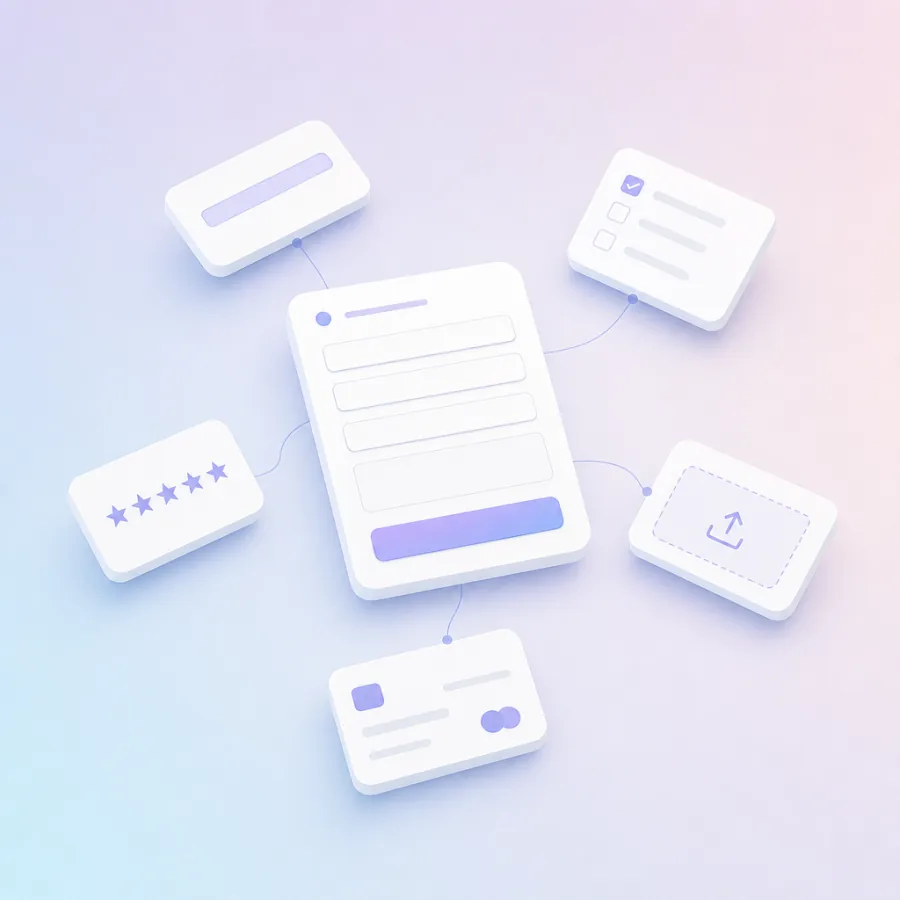
Contact & identity
Validated fields, so you collect clean data instead of free text you have to tidy later.
Choices & scales
The everyday building blocks, with single or multiple selection and ordered ranking.
Ratings & feedback
Purpose-built rating fields that chart themselves in your results.
File uploads
Collect CVs, photos and receipts inside the form. Files arrive attached to each response.
Payments & consent
Take card payments for orders, fees or donations, and record consent properly.
Grids, logic & layout
Matrix grids, page breaks, calculations and media blocks for anything longer than a contact form.
Rebuilding an existing form? Import Questions pastes a whole question list in one go, and Question Bank keeps your own reusable set.
The settings that get forms finished
Nielsen Norman Group found forms that follow established design guidelines get submitted successfully first time 78% of the time, against 42% for forms that ignore them (Web Form Design). Most of those guidelines are a switch here. The ones that matter:
Questions per Page
Breaks a long form into short pages instead of one intimidating scroll.Use on any form over about eight questions.
Progress Bar
Shows how much is left, so people can judge whether to keep going.Always, once the form runs past one page.
Save & Continue
Lets someone stop part way and come back without losing their answers.Applications and anything needing documents to hand.
Auto Advance
Moves to the next question the moment a choice is made.Short forms answered mostly on phones.
Start & End Dates
Opens and closes the form on a schedule, without you remembering to.RSVPs, application windows, enrolment deadlines.
Security & Verify Response
Screens out duplicate and automated submissions before they reach your results.Public forms, competitions, anything with an incentive.
Form Login
Requires a login before the form opens, so only invited people respond.Internal HR forms and confidential feedback.
Languages / Translate
Serves the form in your respondents' language.Any audience that is not all in one country.
Forms here are single column on every screen size, which is the layout the same research recommends. Your job is mostly deciding which questions you can leave out.
One form, five ways to share it
Everything lives on the Publish tab, and you can use more than one route for the same form.
- Share a link by email, chat or social. Facebook, X and Reddit buttons are built in.
- Embed it on your site. Paste the embed code into WordPress, Squarespace or any page you can edit, and set its width and height.
- Email the form straight from the Email panel.
- Unique one-time codes, so each person can submit exactly once.
- QR code for posters, table cards and events. Download and print it once signed in.

Responses land somewhere useful
Every submission appears in a live dashboard the moment it arrives, then flows on to the tools you already use.
- Live dashboard with charts for ratings and choices, a table for written answers, and filters to cut to the group you care about.
- Exports to CSV, Excel and PDF when you need to hand data on.
- Email notifications when responses arrive, plus an automatic reply to the person who submitted.
- Zapier integrations: add a Google Sheets row per response, subscribe people to Mailchimp or ActiveCampaign, or post to any webhook.
- API Post sends each submission straight to your own endpoint, no middleman.

Start from a ready-made form
Every card below is a live form. Open one, try it, then copy it into your own account and edit the questions.










Not sure what to ask? Start here
The slowest part of making a form is deciding on the questions. Each card links to a set written for that exact job, ready to copy in and edit.
More sets: security questionnaires, compensation reviews, internal communication, post-call feedback and 1,000+ more question examples by topic.
Building a hiring form? Before you bolt a personality assessment onto an application form, read what the evidence says about personality tests for hiring. The wrong test in an application form creates more legal risk than signal.
Moving from Google Forms, Typeform or Jotform
You do not have to rebuild anything by hand. Most forms move over in about ten minutes.
1. Paste your questions
Copy the question list from your old form and paste the whole lot into Import Questions. Fix up anything that should be a date, an upload or a rating.
2. Rebuild the rules
Pages, required fields, save and continue, closing dates and duplicate screening all live on the Settings tab, each one a single switch.
3. Swap the embed code
Copy the new embed code from the Publish tab and replace the old snippet on your page. Old responses stay wherever they are now.
Online form builder questions, answered
Is this form builder free?
Yes. Building a form in the editor at the top of this page costs nothing, and you can publish it and start collecting answers by entering an email address on the Publish tab. Free accounts have a monthly response allowance, so a very high volume form will eventually need more room, but nothing has to be decided before you get a form live today.
Do I need an account to create a form?
Not to build one. You can add questions, pick a theme and change settings on this page without signing in to anything. You enter an email and password at the point where you publish, because that is what your form link and your responses get attached to. Without it there would be nowhere for the answers to go.
Should I use an online form or a fillable PDF or Word document?
An online form in almost every case. A fillable PDF or Word form assumes the person has the right app installed and knows how to save and return it, which rules out most people filling it in on a phone. It also means that fixing a typo or adding a question involves sending everyone a new file.
An online form opens in any browser, works on phones and tablets without anything installed, can be corrected after you have shared it, and gives you completion data instead of a folder of attachments to open one by one.
Can people upload files through my form?
Yes. Add an Upload a Photo, Upload Documents or Upload Files question and whatever people attach arrives with their response, so you never have to match a stray email to a submission. It is the usual way to collect CVs on a job application form, photographs on a damage report, or receipts on an expense claim.
Can I take payments through a form?
Yes. Add a Take Payment question and people can pay inside the form itself rather than being sent off to a separate checkout. That covers order forms, event tickets, course fees, deposits and donations.
How do I embed a form on my website?
Build the form above, then:
- Open the Publish tab and choose Embed.
- Set the width and height you want the form to occupy on your page.
- Copy the embed code.
- Paste it into your page in WordPress, Drupal, Squarespace or whichever editor you use, and publish.
- Fill the form in once yourself to check the experience and confirm the response reaches your dashboard.
How do I make a QR code for my form?
A QR code is the quickest way to collect responses in a physical space, on a table card, a poster, a receipt or a slide at the end of a talk. Add your questions above, open the Publish tab, and sign in with an email and password if you have not already. The option to download and print your QR code appears there once you are signed in.
How do I make my form anonymous?
You see the answers to the questions you asked, and that is all. Identifying details such as IP addresses and device signatures are not exposed to you, because modern browsers and GDPR rules in Europe restrict them.
So making a form anonymous is mostly about what you choose to ask. Leave out name, email and any question specific enough to identify one person, then say plainly at the top of the form that no identifying information is collected. People answer far more honestly when they can see for themselves that nothing is being recorded about them.
How many questions should a form have?
Fewer than you think. The Nielsen Norman Group guidance is to cut every field that is not genuinely needed and to keep optional fields down to one or two, and their testing found that forms following the full set of guidelines were submitted successfully first time 78 percent of the time, against 42 percent for forms that did not (Web Form Design: Top 10 Recommendations).
A practical rule: every question should have a decision attached to it. If nobody can say what they would do differently based on the answer, cut it. When you genuinely need a long form, use Questions per Page and a progress bar so that it never looks long on screen.
What is an AI form creator, and is it any good?
An AI form creator writes the first draft for you from a plain English description, instead of you picking through templates or staring at an empty editor. The box under the builder above is the one on this site.
It earns its keep when your situation is specific. A generic restaurant template is written to fit every restaurant. Type something like we are a high end restaurant in Tokyo and want feedback on all six courses, with a focus on ambiance, the staff and the dessert selection and you get questions written for that, in the language you asked for. Treat it as a strong starting point rather than a finished form, and edit it the same way you would edit a template.
Can I copy or duplicate a form?
Two ways. Paste the questions straight into the editor above using Import Questions, or, for a form you already own, open your Dashboard, click the ellipsis next to the form and choose copy. The second keeps your theme and settings as well as the questions, which is what you want when you run the same form every quarter.
Can I make a printable form?
Yes. Add your questions, open the Publish tab, follow the link to your live form and print it from the browser. Background styling is stripped out so it comes out printer friendly. Useful when part of your audience genuinely cannot use a screen, though you lose the completion data and have to key the answers back in.
Can I move a form over from another form builder?
Yes, and it is mostly copy and paste. Copy your existing question list, use Import Questions to bring the whole set in at once, then correct any field that should be a date, an upload, a rating or a payment rather than plain text. Rebuild the behaviour on the Settings tab, copy the new embed code from the Publish tab, and swap it for the old snippet on your site. Your previous responses stay wherever they are now.
Your form could be live in ten minutes
Add your questions in the builder at the top of this page, or let the AI Form Creator draft it for you.
Start building free